


Staff · the part almost nobody else gives you
Time clock and shift rota
for your restaurant
The working-time record the law requires, the week’s rota and the hours ready for your accountant. No spreadsheets and no sheet of paper pinned to the wall.
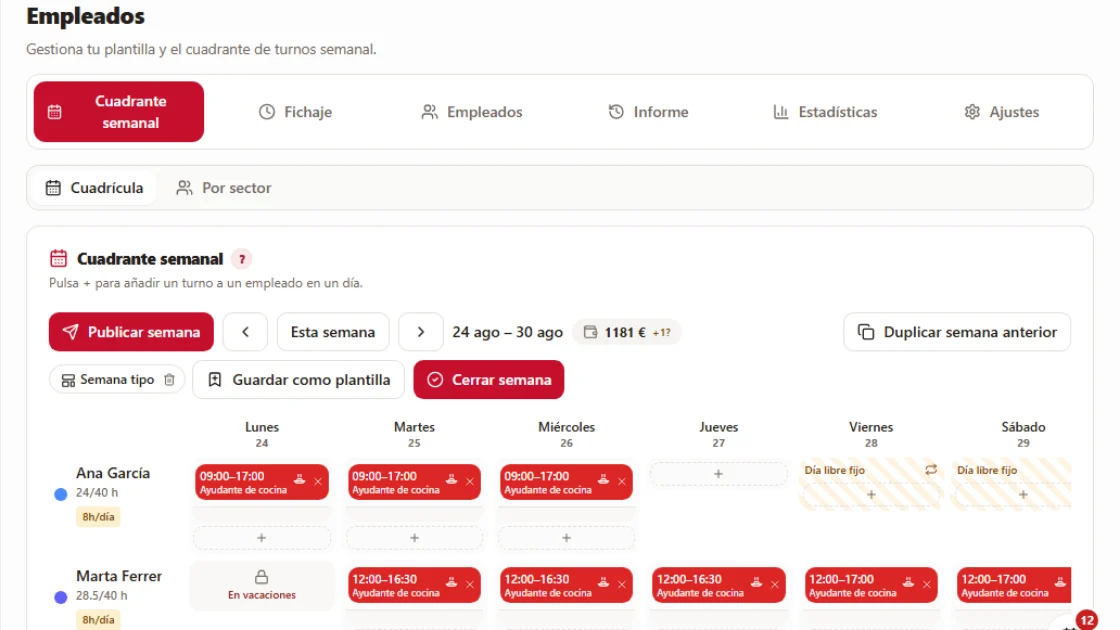
A day with it
From planning the week to sending off the hours.
You plan the week
If it looks like last week, you duplicate it and change what’s different. Your usual shifts (morning, evening, split) are saved and go in with one tap.
You send it to each person
Each employee gets their own hours, not everyone’s. A rota nobody sees is no use at all.
They clock in and out
On a tablet at the bar, with their PIN. You can see who’s in right now and today’s entries.
You close the week
That freezes those hours and they’re ready for payroll. After that, nobody changes them without a record of who and why.
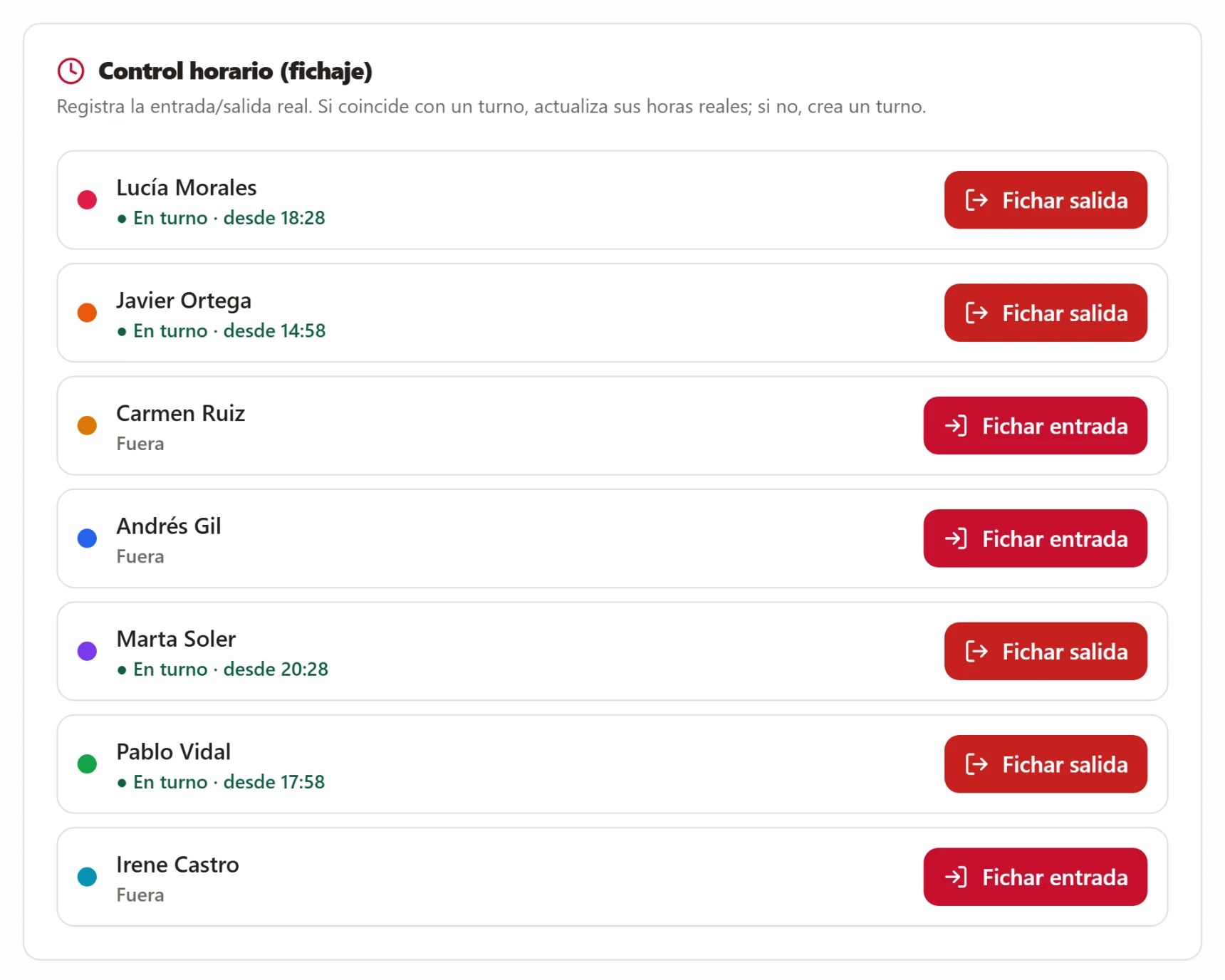
The time clock tablet: each person taps “Clock in” and enters their PIN. And nothing is deleted: a clocking that shouldn’t exist is voided with a reason and kept crossed out, because the working-time record is a document you must be able to show.
What it solves
Three things that eat your mornings today.
“Every month I battle with the hours for payroll.”
The period report compares what was planned with what actually happened, person by person, and exports it for your accountant. What used to take an afternoon on a spreadsheet.
“Someone clocked in on a day they weren’t on the rota.”
It shows up in a list waiting for your decision. If you approve it, those hours count; if not, the shift is removed. What can’t happen is hours slipping through without anyone checking.
“I didn’t notice the food hygiene certificate was about to expire.”
Every document (contract, ID, food hygiene, health and safety) has its expiry date, and the panel warns you before it runs out. Before an inspection does.
In detail
What you look at every week and every month.
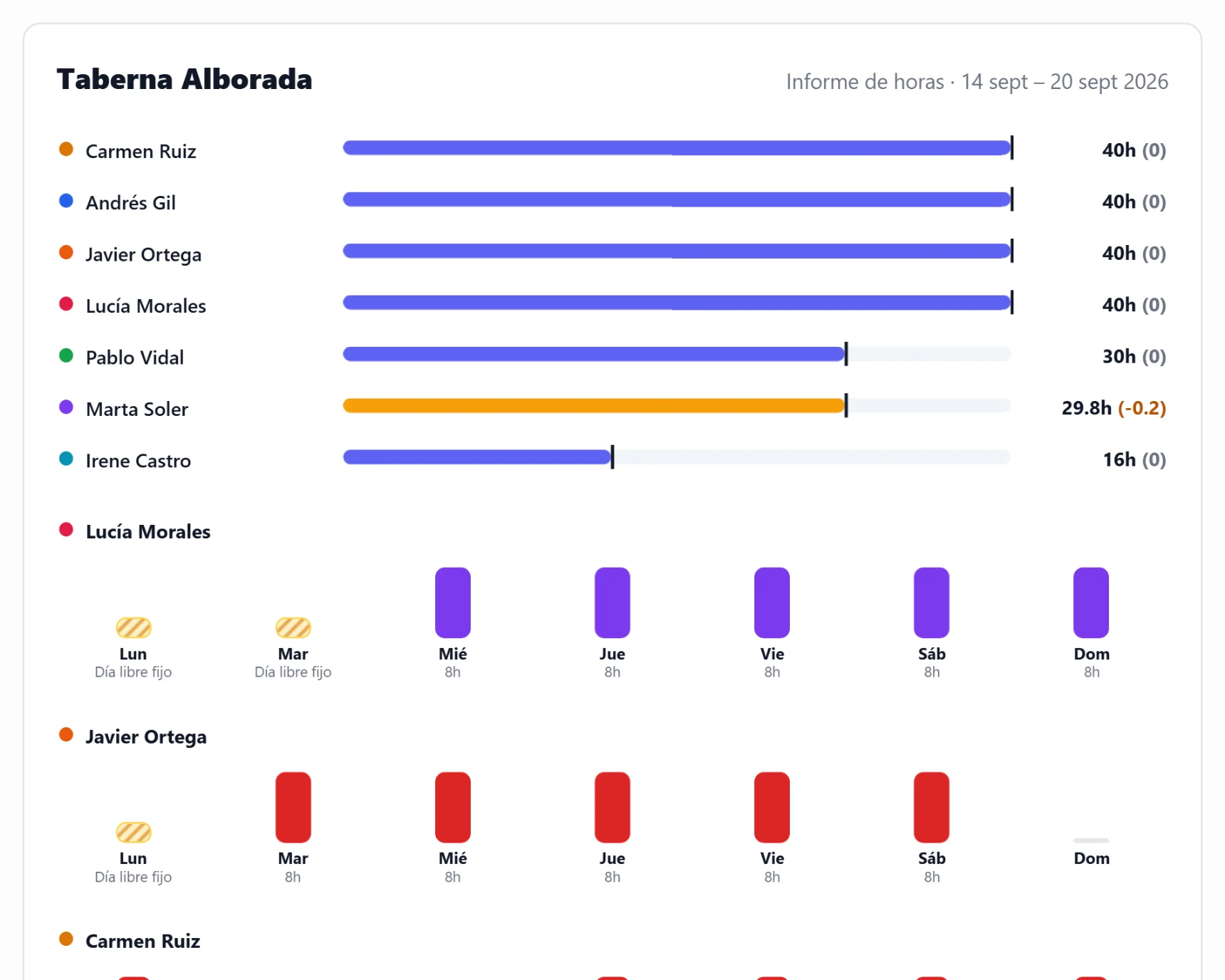
Each person’s hours against what they’re contracted for. A positive balance is hours you owe them; a negative one, hours they owe you — settled whenever you both agree.
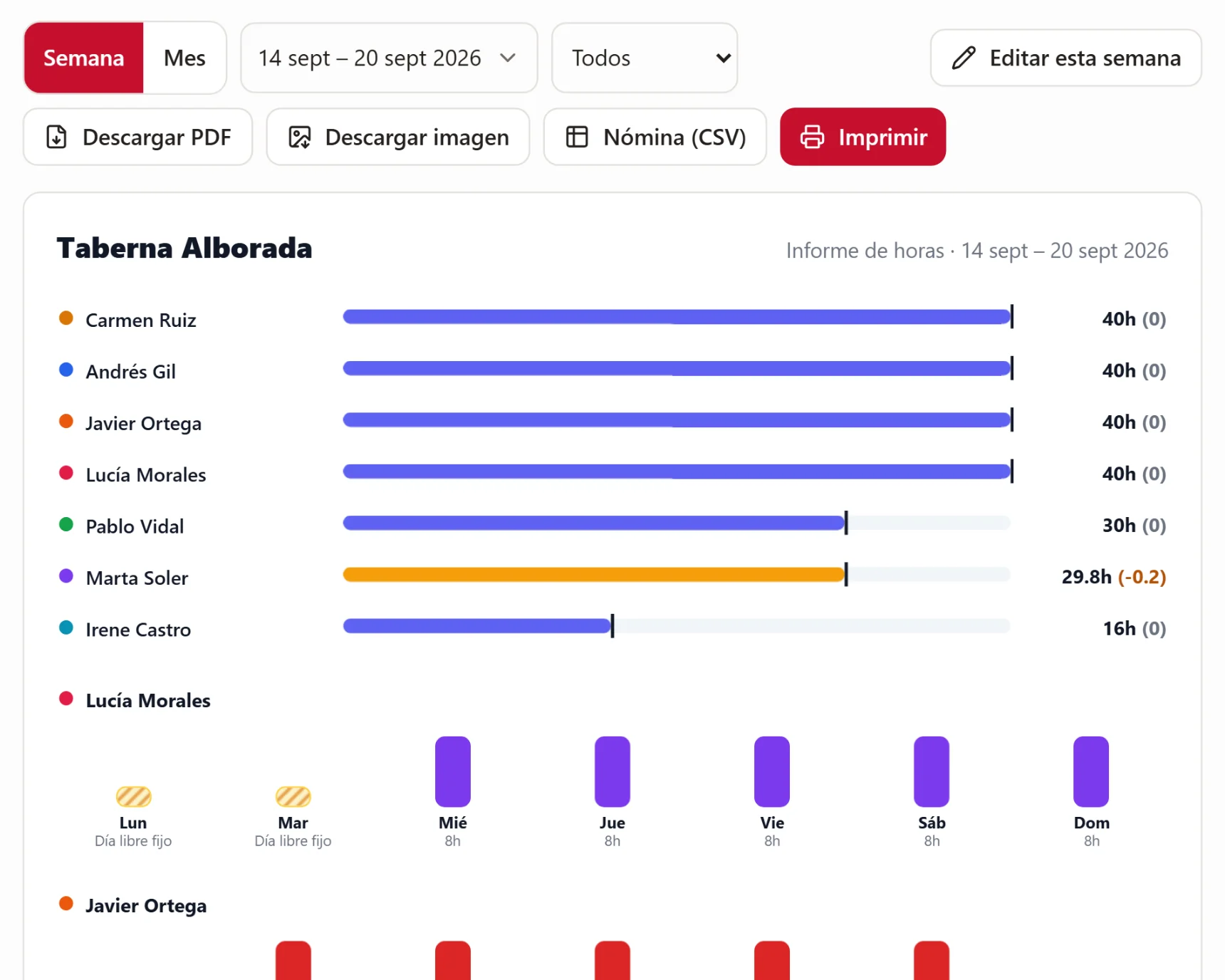
For your accountant, as PDF, image or CSV. Without retyping a single figure.
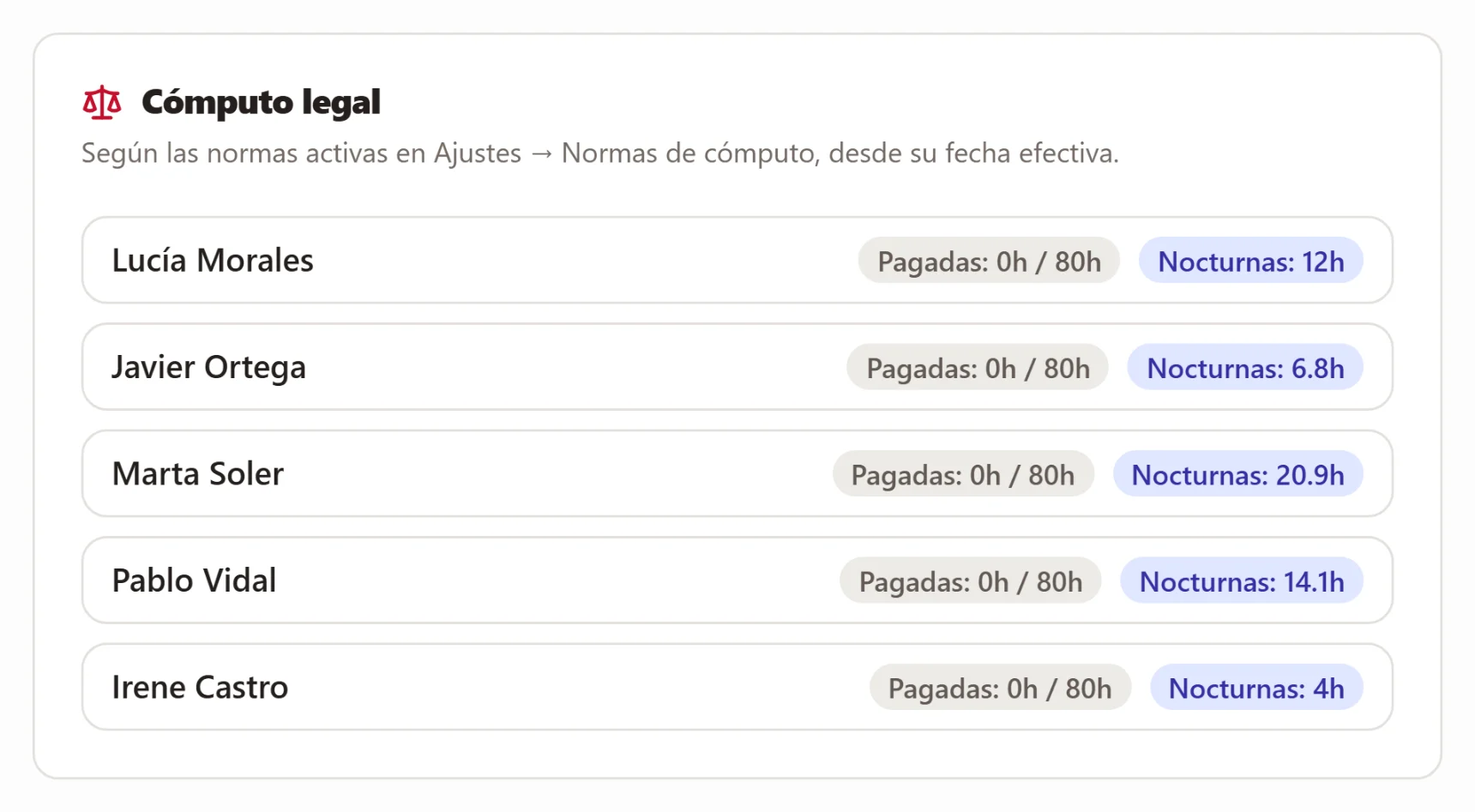
And what almost nobody shows you: each person’s night and overtime hours, counted under the rules you switch on, from the date they apply. What the labour inspectorate asks for, already added up.
What it doesn’t do
Four things it doesn’t do.
We’d rather you found out here than in your second week.
It doesn’t run payroll.
It gives you the hours, overtime and absences ready for your accountant. Social security contributions, pay items and final settlements don’t come from here.
It asks for nothing but a PIN.
Four digits per person: nothing else is used to identify anyone. It’s the simplest thing to explain to your team and the safest ground legally.
It isn’t a replacement for your collective agreement.
It warns you when someone goes over their contracted hours, but breaks, public holidays and the limits in your agreement are for you to set.
It doesn’t clock in for anybody.
If your team doesn’t clock in, there’s no record worth having. This gives you the tool and the audit trail; making it a habit is down to your team.
How it fits in
Your team uses the rest too.
Staff works on its own, and the PIN and permissions are the same across the whole system.
POS and handheld
The same PIN they use to clock in opens the handheld and the till, and every payment is recorded under their name.
Orders and delivery
If your drivers are on your payroll, you add them here too and they clock in like everyone else. Their delivery app is separate.
Help and support
Each employee sees the guides for the sections you’ve given them, and no others.
What you need
A tablet and not much else.
A tablet at the bar
For clocking in. Any tablet with a browser will do; it stays full screen, with a PIN to exit, and doesn’t need touching.
Your team’s details
Name, role and contracted hours. Documents can be uploaded later, whenever you like.
A PIN per person
Four digits. The panel suggests a free one if you don’t want to think about it.
Nothing for the employee
They don’t have to install anything: they clock in on the tablet, and you send them their schedule by WhatsApp with a link.
FAQ
What people ask us about staff.
Does this count as a working-time record?+
Yes, when the team clocks in and out, which is the normal mode: it keeps each person’s start and finish times, it’s stored and it can be shown. And changes leave a trail — a clocking is corrected with a reason and under the name of whoever corrects it, never deleted.
And when someone stops working for me?+
You mark them as a leaver: they drop off the staff list, the rota and the tablet, but their working-time record is kept for the four years the law requires. The panel tells you until what date, you can download their record whenever it’s requested, and if they come back you rehire them with one click. All of that for as long as you’re with us: if you ever leave, you take the exported record with you.
And if somebody leaves their clocking open?+
You see it on the day’s screen and correct it, giving a reason. It’s worth checking before closing the week: a clocking with no clock-out counts hours nobody has worked.
Can I give a manager access without giving them everything?+
Yes. Each user sees only the sections you give them. A manager can run the rota without seeing sales or customer data.
Does it work if my team changes every week?+
That’s exactly what it’s for. Duplicating the week and moving shifts takes minutes, and you get a warning when you go over someone’s contracted hours.
Can I take it without the rest?+
Yes. It’s a module of the panel: you can have Staff without orders or reservations. In the demo we tell you which combination makes sense for you: we’re not going to sell you modules you’ll never open.
The demo
We’ll set up a sample week with your team.
Half an hour, no strings attached and nothing to install. If it’s not right for you, we’ll tell you.